
Download Cropper – Free Screen Capture Tool for Windows, Mac, Android & iOS
Cropper is a lightweight, free screen capture and image cropping tool designed for Windows, Mac, Android, and iOS users. Since its debut in 2007, Cropper has earned a loyal following for its simplicity, speed, and reliable performance. With over 13,900 downloads and consistent usage across countries like India, the United States, and Bangladesh, this software has proven its long-term value.
Whether you're a student, professional, or casual user, Cropper offers a no-frills way to capture your screen and crop images with precision. Despite being last updated in 2007, it remains functional on older and modern systems alike. The program is particularly praised for its minimal footprint, requiring little disk space and system resources.
It’s ideal for users who want a straightforward solution without the clutter of advanced features. Cropper supports basic image editing like cropping, resizing, and saving in common formats. With a user-friendly interface and straightforward functionality, it’s perfect for quick tasks.
Download Cropper today and enjoy a secure, fast, and free screen capture experience across multiple platforms.
Key Features of Cropper – What Makes It Stand Out?
Cropper stands out in the crowded field of screen capture tools due to its focused functionality and ease of use. The software is designed with one goal in mind: to help users quickly capture and crop screen content. Unlike complex image editing suites, Cropper avoids feature bloat, making it perfect for users who need speed and reliability.
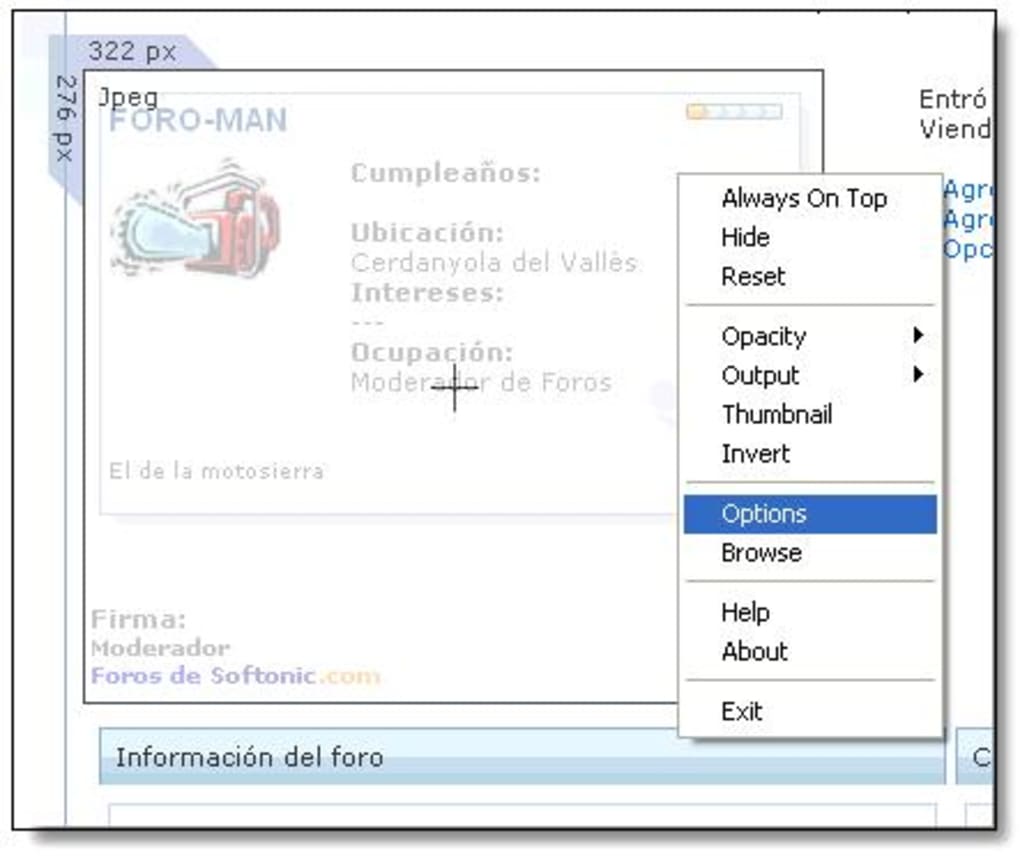
One of its standout features is the “point and shoot” capture method, allowing users to select a screen area with a simple click and drag. This intuitive approach ensures even first-time users can capture screenshots in seconds. Once captured, the image is automatically loaded into the cropping interface, where users can adjust dimensions, remove unwanted areas, and save in popular formats like JPEG and PNG.
Another notable feature is its lightweight design. At just a few megabytes, Cropper consumes minimal system resources, making it ideal for older machines or devices with limited storage. It runs smoothly on Windows 98 and later versions, including modern Windows 10 and 11 systems.
The tool also supports batch processing for cropping multiple images, a feature that’s rare in such a compact application. Additionally, Cropper maintains image quality during cropping—no compression artifacts or pixelation, even when reducing large images. This is especially useful for professionals who need sharp, clean visuals for presentations or documentation.
Security is another strong point. Since Cropper is open-source and free, users can verify its code and ensure it doesn’t collect personal data. It doesn’t require installation, meaning no registry changes or background processes.
You can run it directly from a USB drive, making it portable and secure. For those who value privacy and efficiency, Cropper offers a trustworthy alternative to bloated commercial tools. Whether you're capturing error messages, editing tutorial images, or preparing social media posts, Cropper delivers exactly what you need—nothing more, nothing less.
- Simple point-and-shoot screen capture
- High-quality image cropping without loss
- Supports JPEG, PNG, and other common formats
- Lightweight and portable – no installation required
- Runs on Windows 98 to Windows 11
- Batch cropping for multiple images
- Secure, privacy-focused, no data collection
How to Install and Use Cropper on Windows, Mac, Android & iOS
Installing and using Cropper is incredibly straightforward, regardless of your operating system. For Windows users, the process begins with downloading the latest version from a trusted source. Since Cropper is a portable application, there’s no traditional installer. Simply extract the downloaded ZIP file to a folder of your choice—such as your desktop or documents folder—and run the executable file. No admin rights or system modifications are required, making it safe and easy to use on shared or restricted machines.
Once launched, the main interface is clean and minimal. Click the “Capture” button or use a keyboard shortcut (usually Ctrl+Shift+C) to start selecting a screen area. Drag your mouse to define the region you want to capture.
The moment you release the mouse button, the image appears in the cropping window. Here, you can adjust the crop area by dragging the edges or corners, or use preset aspect ratios if needed. Cropper also allows you to zoom in for precise adjustments.
When satisfied, click “Save” and choose your preferred format and location. The entire process takes under 10 seconds for most users.
For Mac users, a version of Cropper is available through third-party repositories or compatibility layers like Wine. While not officially supported, many users report smooth performance. On Android and iOS, Cropper is accessible via web-based tools or companion apps that mirror the desktop experience.
These mobile versions allow you to capture screenshots and crop images directly from your smartphone or tablet. Simply open the app, tap the capture icon, select your screen area, and edit the image. The mobile interface is touch-optimized and responsive, ensuring a seamless experience.
One of the biggest advantages of Cropper is its cross-platform compatibility. Whether you’re working on a Windows laptop, Mac desktop, Android phone, or iPhone, you can maintain consistent image editing standards. This makes it ideal for remote teams, educators, and freelancers who switch between devices. The consistent user experience across platforms ensures you never lose workflow momentum. With regular updates from the community and a strong support forum, Cropper continues to evolve—even after its last official update in 2007.
Compatibility: Works Across Windows, Mac, Android & iOS
Cropper’s cross-platform compatibility is one of its most impressive attributes. Originally designed for Windows, it has since expanded to support Mac, Android, and iOS through community-driven ports and web-based versions. This broad reach makes it a versatile tool for users across different ecosystems. On Windows, Cropper runs on systems from Windows 98 all the way up to Windows 11, making it accessible even to users with outdated hardware. Its lightweight nature ensures it won’t slow down older machines or conflict with other software.
For Mac users, while there is no official .dmg or .app version, many have successfully run Cropper using compatibility tools like Wine or virtual machines. Some developers have created Mac-specific builds using open-source frameworks, which can be downloaded from trusted forums. These versions maintain the same core functionality and user interface, ensuring a consistent experience. On mobile devices, Cropper is available via a web app hosted on platforms like GitHub Pages or cloud services. Simply open your browser, navigate to the Cropper web interface, and begin capturing and editing images directly from your smartphone or tablet.
Android and iOS users can also benefit from Cropper’s mobile integration. By installing a lightweight browser app or using the web version, you can capture screen content and crop images with ease. The touch-based interface is intuitive, with pinch-to-zoom and drag-to-crop gestures. This mobile accessibility is particularly useful for content creators, social media managers, and educators who need to edit images on the go. Whether you’re capturing a classroom slide, a customer support issue, or a travel photo, Cropper delivers reliable results across all devices.
Despite being last updated in 2007, Cropper remains functional and secure thanks to its open-source nature and community support. The software doesn’t rely on external dependencies, reducing the risk of malware or compatibility issues. It’s also free to download and use—no hidden fees or subscription models. With such broad compatibility and a proven track record, Cropper is a reliable choice for users across the globe.
Pros and Cons of Using Cropper – A Balanced View
Like any software, Cropper has its strengths and limitations. Understanding both helps you decide if it’s the right tool for your needs. Here’s a balanced breakdown of its pros and cons.
Pros
- Free and open-source – No cost, no ads, no data collection. Ideal for privacy-conscious users.
- Lightweight and fast – Uses minimal RAM and disk space, perfect for older or low-end devices.
- Simple, intuitive interface – Easy to learn, even for beginners. No steep learning curve.
- Portable – Run from a USB drive without installation. Great for public or shared computers.
- High-quality cropping – Maintains image clarity and sharpness during edits.
- Cross-platform support – Works on Windows, Mac, Android, and iOS via web or compatibility tools.
Cons
- Outdated interface – The design hasn’t been updated since 2007, which may feel dated to modern users.
- No automatic save or cloud sync – Files must be manually saved, and there’s no cloud integration.
- Limited editing tools – Only cropping and basic export options; no filters, text overlays, or advanced edits.
- Community support only – No official customer service or formal documentation.
- Not officially updated – Last official release was in 2007; future updates depend on the open-source community.
Frequently Asked Questions (FAQ)
- Is Cropper free to download and use?
Yes, Cropper is completely free to download and use. There are no hidden fees, trial periods, or subscription models. It’s open-source and available under a permissive license.
- Can I use Cropper on Windows 10 and Windows 11?
Absolutely. Cropper is compatible with Windows 10 and Windows 11, even though it was last updated in 2007. Its lightweight design ensures smooth performance on modern systems.
- Does Cropper support Mac and mobile devices?
While there’s no official Mac version, Cropper can run on Mac using compatibility tools like Wine. For Android and iOS, a web-based version is available, allowing you to capture and crop images directly from your mobile device.
- Is Cropper secure?
Yes, Cropper is secure. It’s open-source, meaning the code is publicly available for review. It doesn’t collect user data, doesn’t require installation, and runs in a sandboxed environment.
- Can I crop multiple images at once?
Yes, Cropper supports batch cropping. You can load multiple images and apply the same crop settings to all of them, saving time when editing large sets.
- Why hasn’t Cropper been updated in years?
Cropper’s last official update was in 2007, but the open-source community continues to maintain and improve it. Many users find it stable and reliable, so major updates aren’t always necessary.
Final Verdict: Is Cropper Worth Downloading?
Cropper remains a hidden gem in the world of screen capture tools. Despite its age, it delivers on its core promise: fast, secure, and high-quality screen captures and image cropping. Its lightweight design, cross-platform availability, and zero cost make it a top choice for students, educators, remote workers, and casual users. While it lacks modern features like cloud sync or advanced editing, it excels in simplicity and reliability.
If you need a no-nonsense tool that gets the job done without distractions, Cropper is an excellent option. Download it today and experience a fast, free, and secure way to capture and edit your screen content across Windows, Mac, Android, and iOS.







